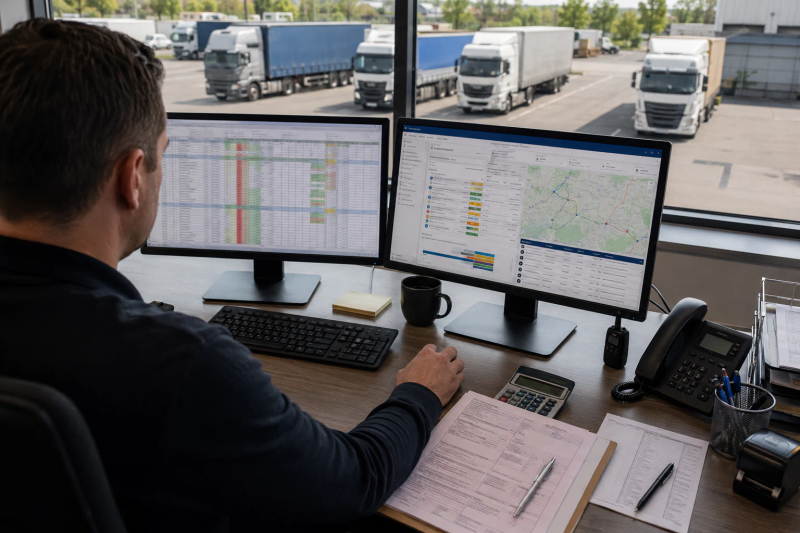

How do you move from Excel to a TMS without stopping work?
Do not load every workbook at once. Start with one workflow. Note which transport orders are active, who updates them, what reaches invoicing and what you will do if the test fails.
Follow five steps:
- choose what to move and who is responsible;
- check and match the data;
- test a small group of transport orders;
- run both processes and plan a fallback;
- check the result before leaving Excel.
There is no timeline that fits every company. No migration guarantees that nothing will change. The result depends on data quality, links to accounting or an ERP, document volume and the tests you choose.
Why should you prepare the data?
An Excel file can contain working data, formulas, old copies and rules known only to its author. ICAEW’s principles for spreadsheets recommend clear rules, documentation and testing.
Moving the file as it is can carry duplicates, missing data and unclear rules into the new workflow. You do not need to copy every cell. Move the data you need.
For the decision between Excel and a TMS, see TMS vs Excel for transport companies. This article focuses on executing the migration after a company has decided to test a system.
Step 1: choose what moves and protect live work
Do not move the whole company in one day. Choose one clear group: one transport-order type, team, fleet or forwarding workflow. Record what stays in Excel and where each change is made.
Separate at least these data groups:
| Data type | Control question |
|---|---|
| customers, suppliers and partners | what is the unique identifier and who approves changes? |
| vehicles, trailers and drivers | who confirms identity, status and contact data? |
| open transport orders and active trips | who takes the next step and where do you update status? |
| job files and transport orders | what belongs to the file and what belongs to the order? |
| documents and CMR references | which documents are required and how are they linked to the order? |
| rates, costs and currencies | which values are historical and which accounting rules confirm them? |
| closed history | what must remain available, and what does not justify a full migration? |
For a carrier, a transport order may connect a vehicle, driver and trip. For a freight forwarder, a job file may group one or more transport orders and link to a subcontracted carrier. Do not treat these as the same thing because they appear in one workbook.
Set one rule for the test: the dispatcher changes status in one system. Use the other one only for checking.
Step 2: check and match the data
Make a simple table before any import or assisted entry:
| Excel field | Where it goes | What to check | Owner |
|---|---|---|---|
| customer code | partner / identifier | one code for the same entity | administration |
| order number | transport order | preserve uniqueness and the agreed prefix | dispatch |
| vehicle number | vehicle | separate tractor unit from trailer | fleet |
| date and time | event or deadline | confirm time zone and format | operations |
| amount and currency | revenue or cost | do not convert currency without an agreed rule | finance |
| CMR number | linked document | verify identifier and order relationship | operations |
Check before the pilot:
- duplicate partners, vehicles and orders;
- missing or reused keys;
- date, time and time-zone formats;
- units, weights and quantities;
- currencies and the accounting treatment of amounts;
- customer, supplier, carrier and subcontractor roles;
- open orders, missing documents and the owner of the next action;
- the link between job file, transport order, trip and document.
Power Query in Excel can connect, change, combine, load and refresh supported sources. It can help prepare data. It does not mean that data enters a TMS automatically or that every file is ready to import.
Step 3: test a small group of transport orders
Choose a small but real group. Include a normal order, a late change and a problem. For sensitive data, use anonymised or test records.
Write down what you want to see before the test:
| Test | What to check | How to check it |
|---|---|---|
| row count | how many rows before and after the move | compare totals and explain any gap |
| values and totals | revenue, cost, quantity and currency | the owner checks a sample |
| duplicates and missing codes | repeated rows or rows without a unique code | make a list and decide what to do |
| active order | status, owner and next action | one order traced end to end |
| documents | link between document, job file and order | check one document |
| late change | vehicle, driver, carrier or deadline changed | history and operational result |
| export | use of data in another system | readable file and checked fields |
For an owned fleet, test a vehicle or driver change. For a freight forwarder, test a subcontracted-carrier change, the split between customer price and carrier cost, and document storage in the right job file.
Give every test a result: pass, fail or needs clarification. TMS features and connections differ by product; Oracle’s TMS overview is only a starting point.
A TMS helps manage transport work. It does not automatically replace accounting or an ERP. Define which data moves between them and who owns each step.
Step 4: run both processes and plan a fallback
Two systems can cause confusion if you edit both without rules. Decide:
- where each change is made;
- who checks the difference;
- when the check happens;
- what happens to new orders and documents;
- who decides to fall back and by when.
Check the test orders each day: what is open, the status, documents, values and next step. For invoicing, check that you do not send the same invoice twice by mistake for the same customer or carrier. For dispatch, check that the same vehicle or driver is not booked on two trips at once.
Fallback means returning to the process you used and checked before the test. It does not mean deleting data or promise that work will continue without problems. If the test fails, stop entering new orders in the TMS under test. Compare its changes with the old process. Copy over the orders and changes you need to keep. Then resume work in the old process.
Step 5: check everything before leaving Excel
After the test, note problems and measure the manual work left. One or two full cycles can help. This is practical advice, not a rule for every company.
Before retiring a spreadsheet, confirm that:
- users and permissions are clear;
- open orders and documents are reconciled;
- the invoicing or reporting handoff has been checked;
- the exit export and data owner are known;
- the workbook is no longer the required source for an unmigrated process.
Keep Excel for analysis when it is useful and well controlled. Retire only the copies used for daily work, not every spreadsheet with formulas or reports.
What should you agree with the supplier before migration?
If you choose assisted implementation, treat it as a service with agreed scope and responsibilities, not as a universal importer. Before work starts, confirm which files and fields are accepted, who cleans and corrects data, who maps it, what training is included, what is tested and how the result is approved.
Do not assume automatic import from any Excel workbook, a universal self-service wizard or a guaranteed timeline. If a field has no clear rule, treat it as a migration decision rather than an automatic conversion.
Check before moving from Excel
Before moving the chosen group, answer these questions:
- is the work and the person responsible clear?
- do you know what data moves and which file is the right one?
- have you checked for duplicates, missing codes, dates, currencies and units?
- have you checked an order, job file, document and problem?
- are the rules for invoices, dispatch and changes made at the same time clear?
- do you know who decides the fallback and how you check the data after it?
- have manual work and export been measured?
- are implementation, training and acceptance clear in the supplier proposal?
If you cannot answer, make the group smaller or delay the switch. A good migration does not just copy rows. It makes the work easier to check.